Legal Document Automation Software: The Honest Ranking
A new client says yes on a Thursday, and now a paralegal opens the template folder. They copy the client's name, entity type, address, and matter details out of the intake form, paste them into an engagement letter, fix the pronouns and the clause that only applies to LLCs, save it under the right matter, send it for signature, and calendar the follow-up. Then they do the same thing for the NDA. The intake form already had every field. A person just moved it, by hand, into a document, the way they will forty more times this month.
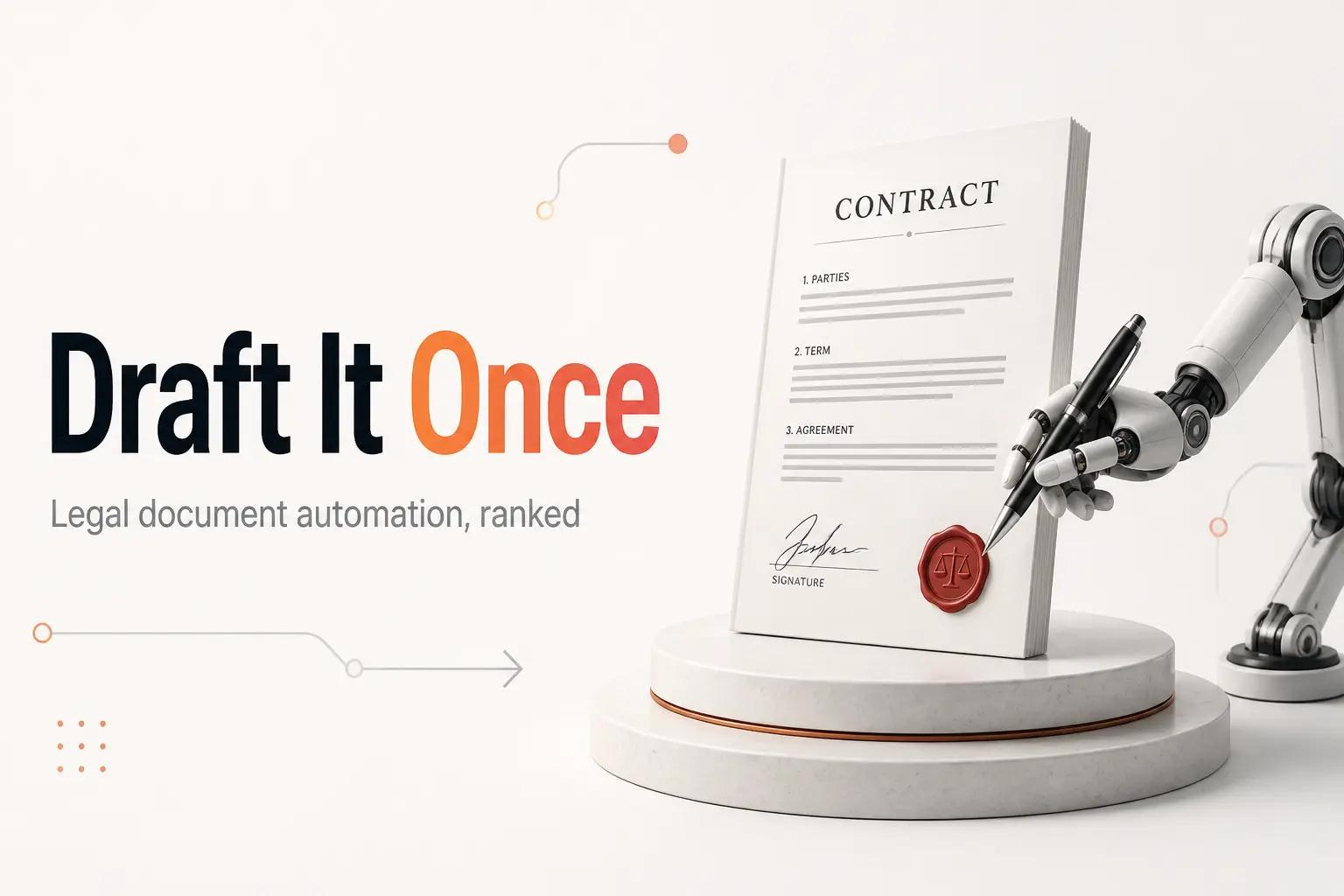
Legal document automation software is meant to delete that middle step. Feed it the matter data once, and the finished engagement letter, NDA, or pleading comes out with the right clauses already switched on. The trouble is that "legal document automation" is sold as one category when it is really two jobs with different tools, different buyers, and wildly different pricing. Buy for the wrong job and you have paid for a clause library when what you needed was contract tracking.
Below is the honest ranking, sorted by the job you actually have. Every price is from the vendor's own current page, and the AI-drafting tools get the caveat their demos skip.
Legal document automation is two different jobs
Ask a solo attorney and an in-house counsel what legal document automation means and you get two answers, because the phrase covers two directions of work.
- Document assembly. Structured data goes in, a finished legal document comes out. Intake answers become an engagement letter, matter fields become a complaint, a questionnaire becomes a will. You are merging data into a template with conditional logic, so the indemnification clause appears only when it should. It is the legal cousin of Excel to Word document automation, with clause logic layered on top. This is the small-firm and high-volume-drafting job.
- Contract lifecycle management (CLM). A contract goes out, gets redlined, approved, signed, and then tracked for renewals and obligations. You are managing the negotiation and the life of an agreement, not generating it from a form. This is the in-house legal and contract-heavy-operations job.
These overlap at the edges, but the tool that wins each is different. Assembly software cares about clause logic and intake. CLM software cares about redlines, approval routing, and a searchable repository of what you already signed. This post covers legal-specific tools. For the broader business case of generating, signing, and extracting any document, see document automation software by job, which is the wider category this one sits inside.
Sort your own pain first. Are you drafting the same documents from client data over and over, or are you managing contracts through negotiation and renewal? Most firms feel one of these sharply and the other barely at all.
Features that actually matter for a lean legal team
Ignore the enterprise feature grids. For a firm or legal team of 1 to 50 people, a handful of capabilities decide whether the automation survives real matters.
- Conditional logic, not just mail-merge. The tool has to switch clauses on and off based on the answers. A jurisdiction, an entity type, or a deal size should change the document, not force a human to delete the paragraphs that do not apply.
- Intake that feeds the document. The data should enter once, through a client questionnaire or a matter field, and flow straight into the draft. If someone still re-keys the intake into the template, you automated the printing and left the typing. The mirror problem, pulling fields back out of documents you receive, is a separate job covered in how to automate data entry.
- It talks to your practice management or CRM. A document tool that cannot read the matter from Clio, read the deal from your CRM, or write the signed copy back to the right folder is an island. The API and the integrations are the whole game.
- A verification step on anything AI drafts. The moment a tool uses a model to draft or review a clause, you need a place where a human checks it before it goes out. That is not a nice-to-have in law. It is the difference between a tool and a liability.
- An audit trail. Who generated it, from what data, who approved it, when it was signed, and where the executed copy landed. For anything that becomes a binding document, this is table stakes.
Everything else is decoration. A tool that nails conditional logic, intake, and integration earns its license. One that ships a pretty editor and no API is a faster way to do the manual work.
The best legal document automation tools, by job
Here is the ranking. The named tools each do one slice of the work well. bottta sits first because none of them run the whole path from intake to signed-and-filed on their own, and connecting them to your practice management system, your CRM, and your storage is the part that actually eats the week.
Start with the wiring: bottta
Every tool below automates one stretch of the document's life. A real legal workflow crosses the whole thing: the intake form the data arrives in, the practice management system that holds the matter, the assembly tool that drafts the document, the e-signature step, and the folder plus the deadline that have to be right afterward. That connective layer is what bottta designs and builds.
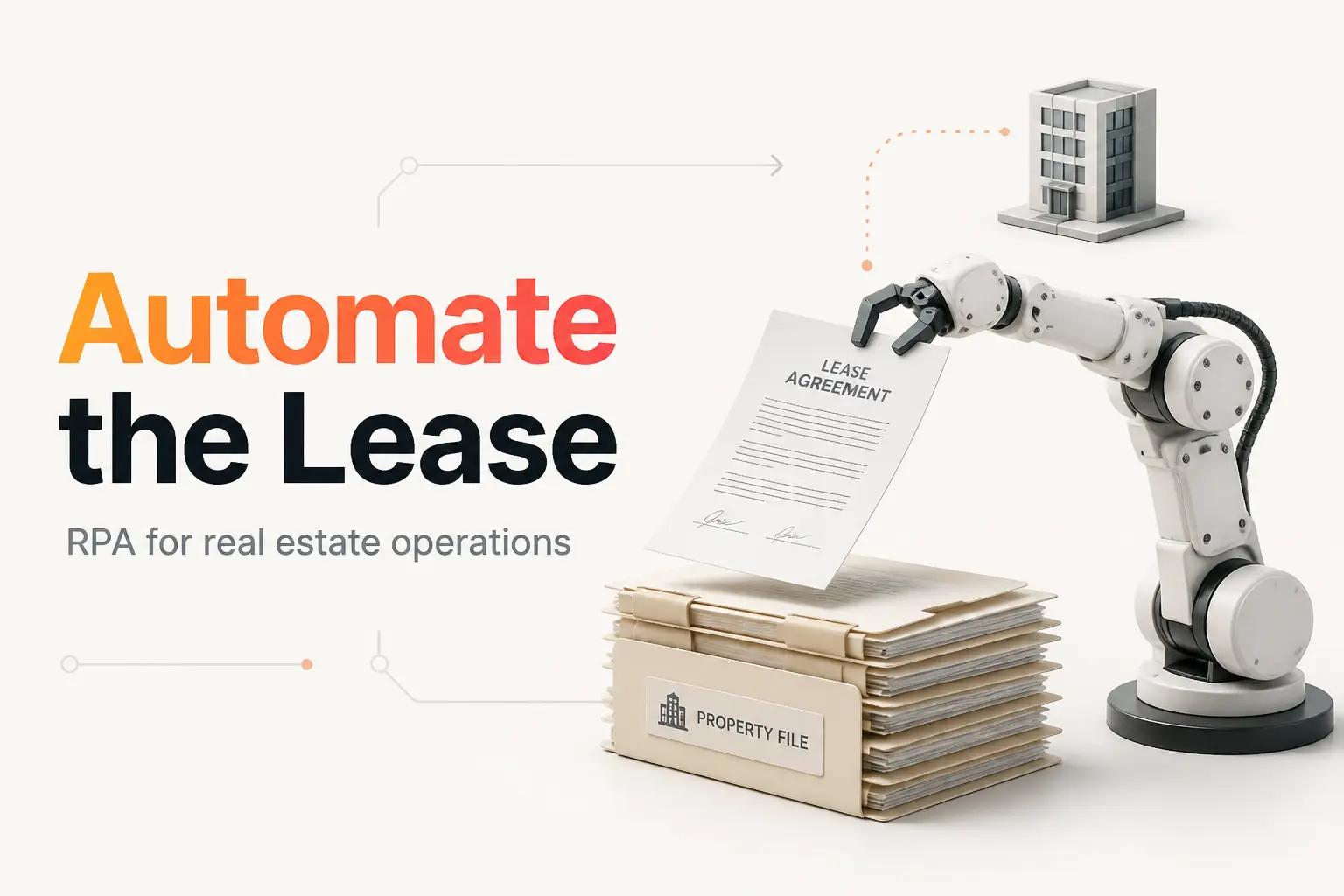
We are an automation studio, not another legal product to log into. The work splits across what we do. Workflow Design to map the document's full path, every branch, and every place a deadline or a clause depends on the matter. Integrations to wire the assembly tool to your practice management system and CRM over their APIs and webhooks, so intake data flows in and the executed copy files itself. AI Automation for the drafting and review steps where a model helps, wrapped in the confidence gate and human-check that legal work requires. Custom Builds when the intake questionnaire or the matter tracker you need does not exist off the shelf.
Two ways to work with us. The $4K fixed-scope project fits a defined workflow: take the intake answers, generate the engagement letter and NDA with the right clauses, route them for signature, file the signed copies to the matter, and calendar the follow-up, delivered with integrations included and 30 days of post-launch support. The $3K/month retainer fits a firm or legal team with a queue of document workflows and steady volume, with up to three active builds at a time plus monitoring, so a silent failure the night before a filing is our problem, not your morning. No free tier, no self-serve button. You tell us the document and where it has to go, and we build the path.
The tools below are the components we wire. Pick them by job.
Document assembly: Gavel, HotDocs, and Clio Draft
This is the "intake in, legal document out" job, and it is where most small-firm searches land.
Gavel (formerly Documate) is the strongest modern pick for a lean firm building its own document automation. Its Workflows product starts at $83/month per its pricing page, and you build the questionnaire and the conditional logic yourself without code. Gavel also sells a separate AI product, Gavel Exec, at $160 per user per month for AI-assisted contract drafting and review, per its Exec pricing. Best for a firm that generates the same document types at volume and wants to own the templates.
HotDocs (now part of Mitratech) is the long-standing enterprise assembly engine, the one big firms and insurers have run for decades on complex, high-stakes templates. It does not publish list pricing, so you are into a sales quote. It is powerful and it is heavy. For a 12-person firm, it is usually more platform than the work needs, which is why Gavel tends to win that segment now.
Clio Draft (formerly Lawyaw) is the pick when your firm already lives in Clio. It bolts document automation onto the practice management system you use for matters, billing, and time, so the matter data is already there. Clio sells it as a paid add-on rather than a published flat rate, so confirm the current number with Clio for your seat count. The draw is not raw power, it is that the documents draft from the matter you already opened.
Contract lifecycle management: Ironclad and Juro
This is the other job entirely: managing a contract through negotiation, approval, signature, and renewal. If your pain is redlines and tracking what you signed, not drafting from intake, you are shopping here.
Ironclad is the heavyweight for in-house legal and procurement-heavy operations. It handles the full contract workflow, from a request through approval routing to a searchable repository. It does not publish list pricing, and its page routes you to a demo, so treat it as a quote-based, annual-commitment platform aimed at teams with real contract volume.
Juro is the more modern, more design-forward CLM, and it leans toward collaborative drafting and e-signature in one browser-based flow. Like Ironclad, it does not publish list pricing and sends buyers through a sales process. Both are genuine tools, and both are secondary to the point that CLM only pays off once you are managing enough contracts for the repository and the renewal tracking to matter. A 10-person firm drafting engagement letters does not need a CLM. An operations team signing hundreds of vendor and customer agreements a year does.
Where AI drafting and review actually stands
Half the tools above now advertise an AI that drafts or reviews clauses for you. Before you lean on it, hold two facts that the product pages skip.
The first is that legal AI hallucinates more than the demo suggests. A Stanford RegLab and Human-Centered AI team benchmarked the leading legal research tools against a pre-registered set of over 200 queries and found, in their study, that Lexis+ AI and Thomson Reuters' Ask Practical Law AI produced incorrect information more than 17% of the time, and Westlaw's AI-Assisted Research hallucinated more than 34% of the time. Those are the purpose-built, retrieval-grounded legal tools. A clause drafted by a general model with no legal grounding is not safer.
The second is that the duty does not move to the vendor. The American Bar Association's Formal Opinion 512, issued in July 2024, is blunt that using generative AI does not relax a lawyer's obligations. Competence still requires you to check the output. Confidentiality still governs what you paste in. The lawyer who signs the document owns what is in it.
Read together, those two facts set the deployment rule. AI is the fast, cheap, unreliable part of a legal document workflow. Let it draft the first pass and flag the odd clause, but the value and the risk both live in the step wrapped around it: the human review, the confidentiality boundary, and the audit trail. That gate is not a checkbox inside these tools. It is something you build around them, which is exactly the work in the wider AI-for-law-firms picture, the same picture that covers an AI receptionist for the intake calls.
How to choose
Match the tool to the job, then be honest about the wiring between it and the rest of your stack.
- You are a solo or small firm drafting the same documents from intake. Gavel, at $83/month for Workflows, and build your own questionnaires. It is the best value in modern assembly.
- You already run your firm on Clio. Clio Draft, so the documents draft from matters you already have open. Confirm the add-on price for your seats.
- You are a large firm with complex, high-stakes templates and a budget. HotDocs, on a quote. It is heavier than most firms need, so only if the template complexity truly demands it.
- Your pain is contract negotiation and renewals, not drafting. Ironclad or Juro, both quote-based. Only once your contract volume justifies a repository and renewal tracking.
- The workflow is intake to signed to filed to calendared, across your practice management system. This is the common case, and it is where a single tool stops helping. The assembly tool drafts, but connecting it to your matters, your signatures, your folders, and your deadlines is three or four integrations. That is a bottta build, as a fixed $4K project or under the retainer if you have a queue of them.
If your document work is one clean step, buy the tool and move on. The moment it is a chain from client data to a signed, filed, calendared document, the software is the cheap part and the connection is the job.
Frequently asked questions
What is legal document automation software?
It is any tool that removes the manual re-keying from a legal document's life. In practice it covers two distinct jobs: document assembly, which merges intake or matter data into a template with conditional clause logic (Gavel, HotDocs, Clio Draft), and contract lifecycle management, which routes contracts through negotiation, approval, signature, and renewal tracking (Ironclad, Juro). Most firms feel one of those two sharply.
How much does legal document automation cost?
For document assembly, Gavel's Workflows product starts at $83/month and its AI-focused Exec product is $160 per user per month, both per Gavel's pricing pages. HotDocs and Clio Draft do not publish flat list pricing, and the major CLM platforms, Ironclad and Juro, are quote-based with no public list price. The tool itself is rarely the expensive part. The cost that adds up is connecting it to your practice management system and storage and keeping it running.
Is Clio Draft the same as Lawyaw?
Yes. Lawyaw was acquired by Clio and rebranded as Clio Draft. It is document assembly built to work inside Clio's practice management system, so the matter data you already entered flows into the drafted document. Clio sells it as a paid add-on rather than a published flat rate, so confirm the current price for your seat count with Clio.
Can I trust AI to draft legal documents?
Only with a human checking the output. A Stanford RegLab and HAI study found the leading purpose-built legal research tools produced incorrect information more than 17% of the time, and one exceeded 34%. The ABA's Formal Opinion 512 confirms that using AI does not relax a lawyer's duty of competence or confidentiality. Use AI to draft the first pass, then verify it. The verification and audit-trail step is the part worth building carefully.
Should a small firm buy a CLM like Ironclad or Juro?
Usually not. CLM earns its cost once you are managing enough contracts that a searchable repository and automated renewal tracking pay off, which is an in-house legal or procurement reality more than a small-firm one. A firm whose real pain is drafting engagement letters and NDAs from intake wants document assembly (Gavel or Clio Draft) plus the workflow wiring around it, not a full contract lifecycle platform. For the build-versus-buy call in general, see when to automate a task and when not to.